In the next beta
Clips board
The strongest moments in a recording, ranked by sound, reactions and on-screen action. Preview in place, open one in the editor, or export several at once.
 CUTROOM
A free, open-source video editor for creators. Optional AI spots the strong moments in long recordings, and a full timeline lets you cut, frame, mix and caption them on your own computer.
1.3 Beta · Windows and Mac · Free, no watermark
Explore the editorBeta: review exports before publishing. Windows clean-install checks are incomplete.
1.3 BetaInstallation help
Windows setup no longer installs Ollama automatically. This is a beta; manual checks on physical devices remain pending.
Windows clean-install qualification for this ZIP is incomplete. See release notes for exact Mac automated results; physical UI and listening checks remain untested. Hebrew accuracy and automatic speaker framing remain unfinished.
Beta build · 11 November 2026. Review drafts and exports before publishing.
AccessibilityLinux source guide
Windows requires WinGet and Microsoft Visual C++ x64 runtime first. See installation help below.
Windows ZIP · Mac source launcher, not a signed app
Mac uses the combined ZIP. Extract it, open mac, then run START CUTROOM.command beside App.
First setup needs internet. Manual editing needs no account.
 Enlarge editor screenshot
Record a long session and CUTROOM suggests where to start: moments for short clips, or a condensed cut for YouTube. Every suggestion opens in the full editor, where the final call is yours.
In the next beta
The strongest moments in a recording, ranked by sound, reactions and on-screen action. Preview in place, open one in the editor, or export several at once.
In the next beta
Condense a gameplay session to the length you choose. The strongest stretches stay in order, menus, loading screens and dead air go, and chapters are ready for the description.
Available now
A timeline with A/B tracks, screen and camera layouts, a mixer, word-by-word captions and MP4 export up to 4K. Work with AI or without it.
Every step within reach. Every decision still yours.
Bring video, music and images together. Review your source footage before adding it to the edit.
Explore Media →Cut and arrange your sequence on the timeline. Move into layout, sound and captions when you're ready.
Explore Edit →Choose a landscape or vertical frame, review your settings and export an MP4 without a CUTROOM watermark.
Explore Output →From your first import to the final MP4. Explore the real workspaces, then open any image at full resolution.
Keep your recordings, music and images within reach.
Source footage · Video · Audio · Images
 Open original image →
Cut, trim and reorder. Keep what works, undo what doesn’t.
Independent tracks · Undo & Redo · Track locks
Open original image →
Frame a single recording or combine a camera and screen.
Crop · Picture in picture · Camera & screen
 Open original image →
Balance the recording, music and voiceover in one mixer.
Live meters · Mute · Preview solo
 Open original image →
Add a title, import captions, or refine an optional AI transcript.
Titles · SRT & VTT · Editable captions
 Open original image →
Export an MP4 on your computer, without a CUTROOM watermark.
Landscape & vertical · Up to 4K · Up to 60 FPS
 Open original image →
Compare local models and provider options. AI is optional.
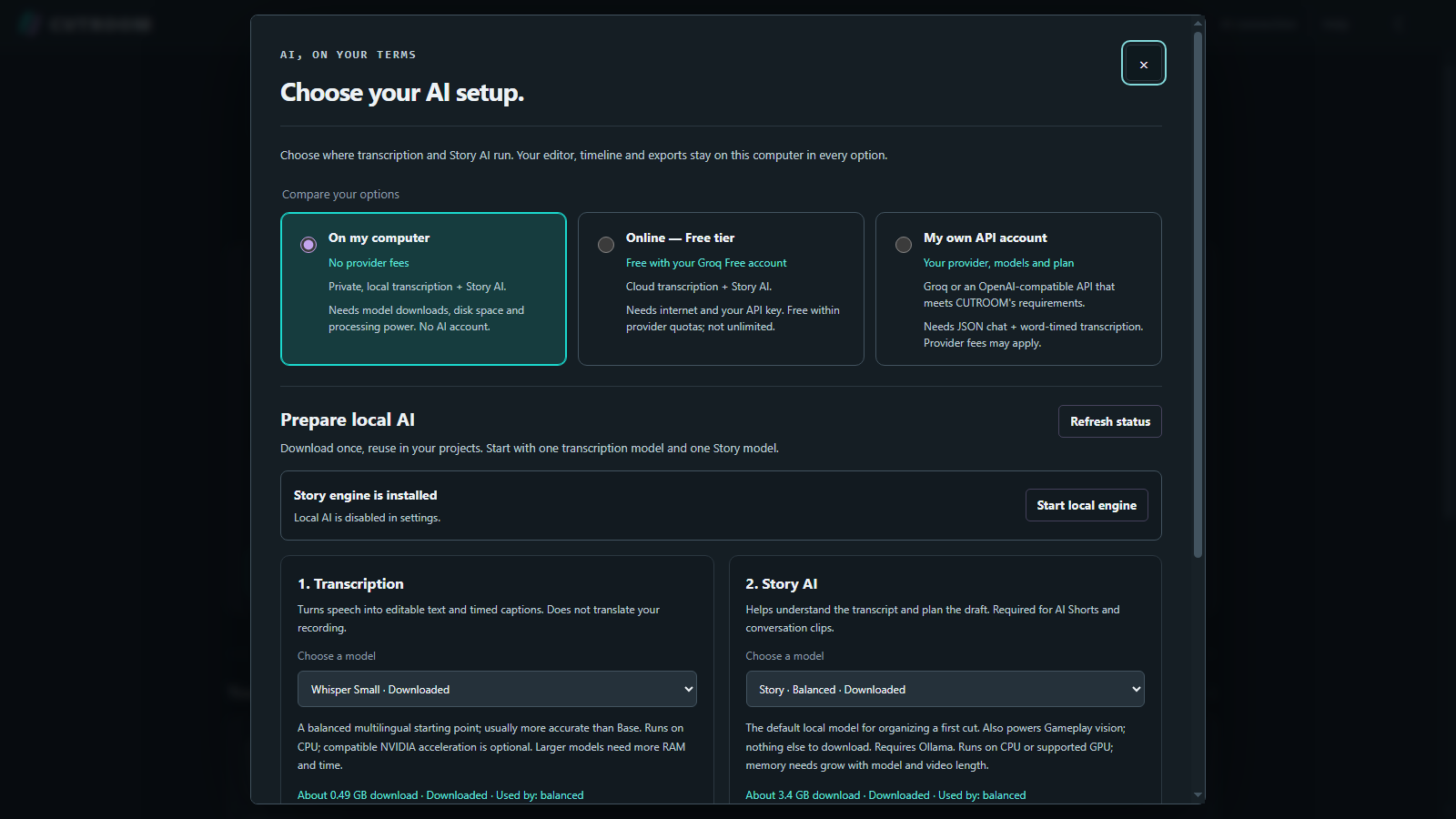 Open original image →
Home and workspace captures are from 19 October 2026; Projects and Export dialog are from 15 October. The AI setup capture date was not recorded. These are archived originals, not new captures. Additional windows are not yet pictured here.
Your story starts here.
Get CUTROOMAsk for a draft when it helps. Review it, change it, make it yours.
Windows and Mac in beta. Linux from source. First setup needs internet; manual editing needs no account or AI.
1.3 Beta · Hebrew-first speech and independent routing
New: explicitly selected Hebrew uses ivrit.ai in both Balanced and Quality, with a separately confirmed model download and memory checks. Lite stays lightweight. Transcription is independent from Story AI; local speech never uploads audio. Optional Cloudflare is experimental and off by default, with explicit account/model/future-job consent. No real audio was uploaded for testing, and provider accuracy or billing behavior is not verified.
Authored caption line breaks now survive in preview. Pinned-font rendering checks cover four styles and portrait captions; browser checks cover both preview paths. If cloud falls back to local, prior upload attempts remain visible in transcript details. These are controlled rendering checks, not transcription-accuracy certification.
11 November: neutral gray light-mode surfaces leave the video preview unchanged. Automatic Hebrew refinement uses only an already-cached local model, preserves the original transcript when the result is weak, and does not download a new model. Mixed Hebrew-English caption rendering is corrected. Real-speech transcription accuracy has not been measured.
8 November: source In/Out marks carry directly into Add source footage. Choose Insert or Overwrite, with optional placement into a captured timeline range. Overwrite preserves sequence duration, respects locked scopes, and supports Undo and Redo.
The editor has a refreshed visual hierarchy, clearer workspace navigation, organized controls and more readable panels. Gallery images still show the earlier interface and retain their original dates.
Stability update, 6 November: if FFprobe is missing or unavailable, import explains how to repair and retry. A failed replacement preserves your saved media and edits.
New video layers include their source sound by default when the file has audio. Select a layer in Media to include or exclude sound, adjust clip volume and fades, or mute it. Saved silent overlays stay silent until you turn their sound on.
The AI draft notice is compact and expandable, with space reserved outside the preview. It still flags a draft shorter than requested; open it for the actual duration, target and explanation.
Picture speed changes the video only. Layer sound plays at normal speed from Source in. Review the preview and export before publishing.
Project setup is clearer on narrow screens, unavailable controls are easier to recognize, and reset messages describe the selected action.
Timeline zoom stays focused on the selection during playback, and thumbnails update more reliably.
Get the 1.3 betaPublic beta. Automated checks do not replace a test on your computer. Transcription and AI, physical-device installation, Finder/Gatekeeper/Safari and representative English/Hebrew editing and listening still need manual acceptance. AI drafts may miss context or have weak endings.
With two recordings, confirm that both sources show the same moment before relying on synchronization. A camera appears only where its track covers the edit; an empty B track does not create camera footage.
Release notes and recorded checksCUTROOM uses Python 3.12. If it isn't installed, Windows setup downloads a private copy into the CUTROOM folder.
Beta release notes - build 11 November 202611 November speech and Hebrew update retains the gray workspace. Gallery screenshots remain archival. Transcription settings were checked in desktop and mobile browser layouts; live Cloudflare, accuracy measurements, physical-device acceptance and human listening remain untested.
WINDOWS + MAC · 1.3 BETA
Choose the ZIP for your computer and extract it. Keep the launcher, START HERE.html and App together. Runtimes and AI models are not bundled.
Windows: Install WinGet and Microsoft Visual C++ x64 runtime first. Double-click START CUTROOM.bat beside App. Setup downloads Python and media dependencies; keep the launch window open. The required Visual C++ runtime is not installed by the launcher.
Microsoft Visual C++ x64 - official downloadMac: macOS 15+, Apple Silicon or Intel. Extract the combined ZIP, open its mac folder and run START CUTROOM.command beside App. It needs Python 3.12 and FFmpeg 7; setup uses existing Homebrew with your approval. This is not a signed Mac app. Local transcription uses the CPU. Manual Finder, Gatekeeper and Safari checks remain pending.
Linux: source only, with no packaged download or verified native Linux QA. It needs Python 3.12, venv/pip and FFmpeg/FFprobe with subtitle support. Follow the platform guide.
The optional combined ZIP has exactly two folders: windows and mac. Open your platform folder first.
Combined ZIPCombined SHA-256Primary downloads are hosted on GitHub. If a download is unavailable, use a mirror:
Windows mirrorMac mirrorCombined ZIP mirror Exact source ZIPSource SHA-256Source ZIP mirror Platform installation guideMac beta guideManual editing and export need no AI models or account. Local AI needs separate downloads; a selected speech model that is missing may download on first use. Story AI also uses Ollama. After opening the editor, choose AI connection, On my computer, then Get Ollama to install it separately.
You can connect a compatible cloud provider with your own key. Audio and transcripts are sent after your choice and consent; provider quotas and charges apply.
AI setup and privacyThis website does not accept recordings. Editing, preview and export run on your computer. Sharing with a cloud AI provider is a separate choice requiring consent.
Privacy and cookiesUse Tab and Shift+Tab to move between controls. Enter follows links; Enter or Space activates buttons and help sections. The first link skips directly to the content.
In the workspace tabs, use the arrow keys, Home and End. In the enlarged screenshot, Escape closes the dialog and returns focus to its opening button.
Use your browser zoom to enlarge the content. The page adapts to narrow screens and respects system preferences for reduced motion and forced colors. Workspace content is also available without JavaScript.
This help applies to this website; the downloaded editor and installation have separate checks. If you encounter an accessibility barrier, report it on GitHub with the page URL, browser and steps. Do not include personal information.
Report an accessibility barrier on GitHubWindows and Mac beta. Linux from source.


